Collaboration & Publishing
Whether you’re working with teammates, clients, or friends - ByDesign makes sharing feel effortless and flexible.
Written By Chirali Jain
🔗 Share a Page (like a Google Doc)
Every page in ByDesign can be shared—just like you’d share a Google Doc.
Click the "Share" button in the top right of any page to get started.
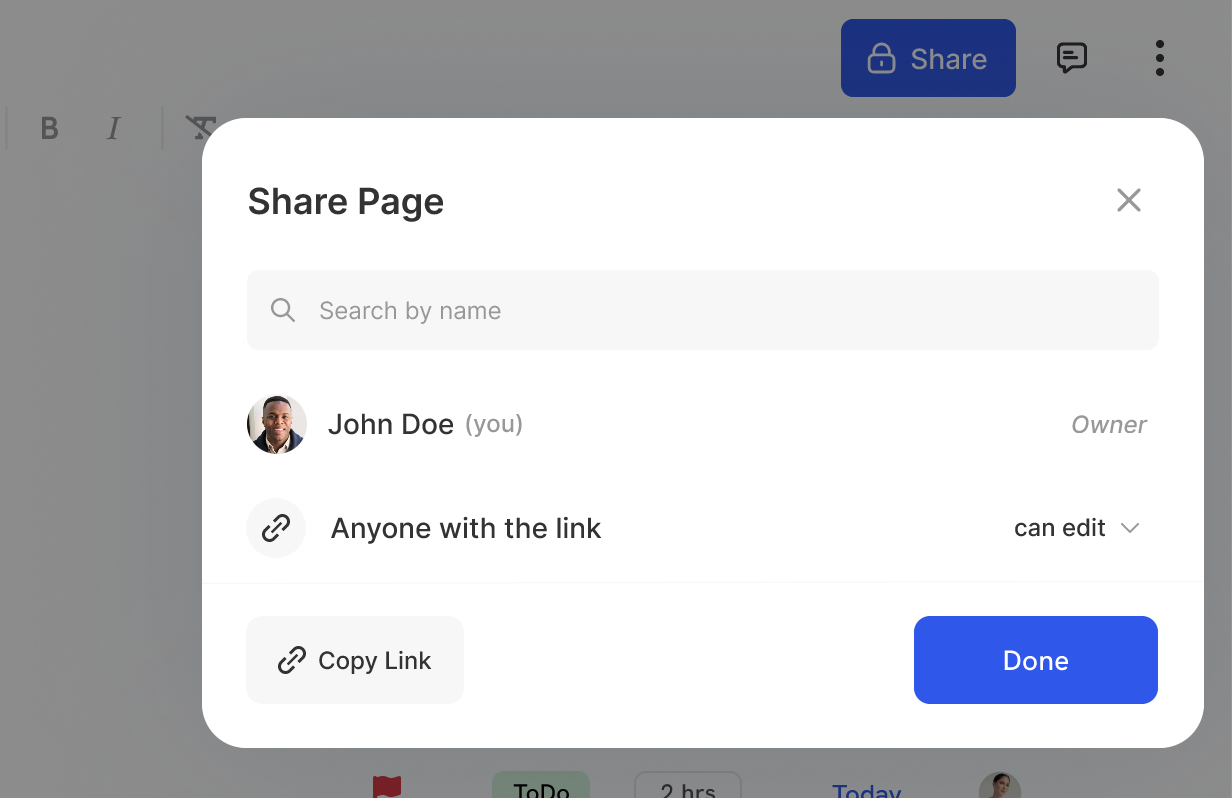
You have two ways to share:
1. With specific people
If they’re already on ByDesign:
Just start typing their name, and their profile will pop up. Select it and set their permissions.If they’re not on ByDesign yet:
Type in their email address, and they’ll receive an invite link. You can still set whether they can view, comment, or edit the page.
2. With a link
Want to share with someone without adding them manually?
Click “Anyone with the link can…” and choose the permission level:
View only
Comment
Edit
This is great when:
You’re working with freelancers or external collaborators
You want someone to check a doc without joining yet
You’re sharing general info with a wider group
🌐 Publish a Page as a Public Webpage
Sometimes, you don’t want collaboration—you just want to share information.
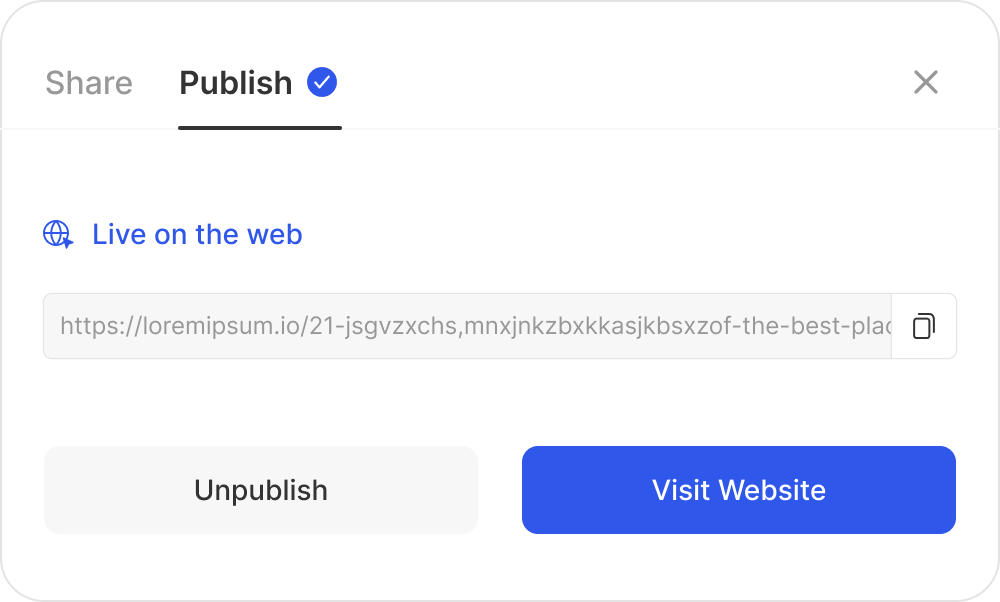
ByDesign allows you to publish any page as a webpage—a clean, read-only view anyone can access.
To publish:
Click the Share button
Toggle on “Publish page to web”
Copy the generated link and share it with anyone
Common use cases:
Share a project brief or proposal with a client
Publish a reading list, travel itinerary, or daily schedule
Send a one-page document to friends or co-workers
Use it as a portfolio or public page
Document handbooks, SOPs, checklists—without needing the other person to create an account
Once published, the page is live—but you can unpublish it at any time.
💬 Comments & Threads
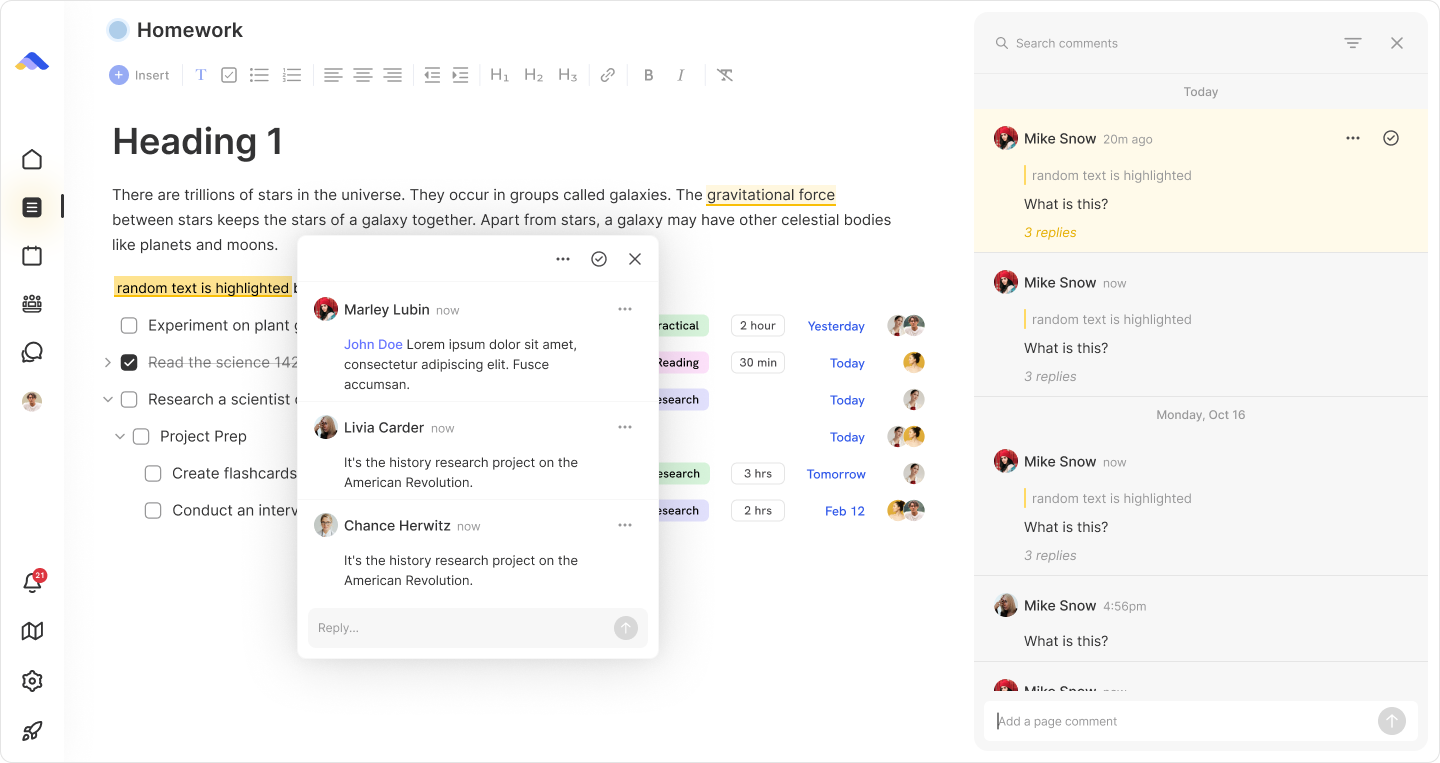
Every page supports inline commenting, so you and your collaborators can discuss specific content.
Here’s how it works:
Select any text or block on the page
Click “Comment” from the toolbar or right-click menu
A comment thread opens on the side
Others can reply, resolve, or @mention teammates
Use comments for:
Giving feedback
Asking questions
Discussing ideas without changing the actual page content
All resolved comments are hidden, but can be brought back if needed.
✅ Sharing Individual Tasks
Want to collaborate without sharing the full page? You can also share a single task.
Hover over the task
Click the share icon
Choose a connection to share it with
The recipient will receive the task in their Inbox, without seeing the rest of the page.
This is especially useful when:
You want someone to help with one thing, not the whole project
You’re assigning a quick reminder or one-off task
You want to keep your page private but still delegate work
Note: To share a task with someone, they need to be your connection on ByDesign.
👥 How to Connect with People on ByDesign
To assign or share tasks with others, they need to be in your ByDesign network.
To connect:
Go to your Profile
Click Connections
You can:
Search for someone already on ByDesign
Or Invite them—this sends them your profile link
Once they accept, you can:
Assign them tasks
Share pages
Collaborate seamlessly