Siri & Shortcuts
Whether you're rushing out the door or mid-thought, Siri Shortcuts and the Shortcuts app make it incredibly easy to capture tasks into ByDesign—without even opening the app.
Written By Chirali Jain
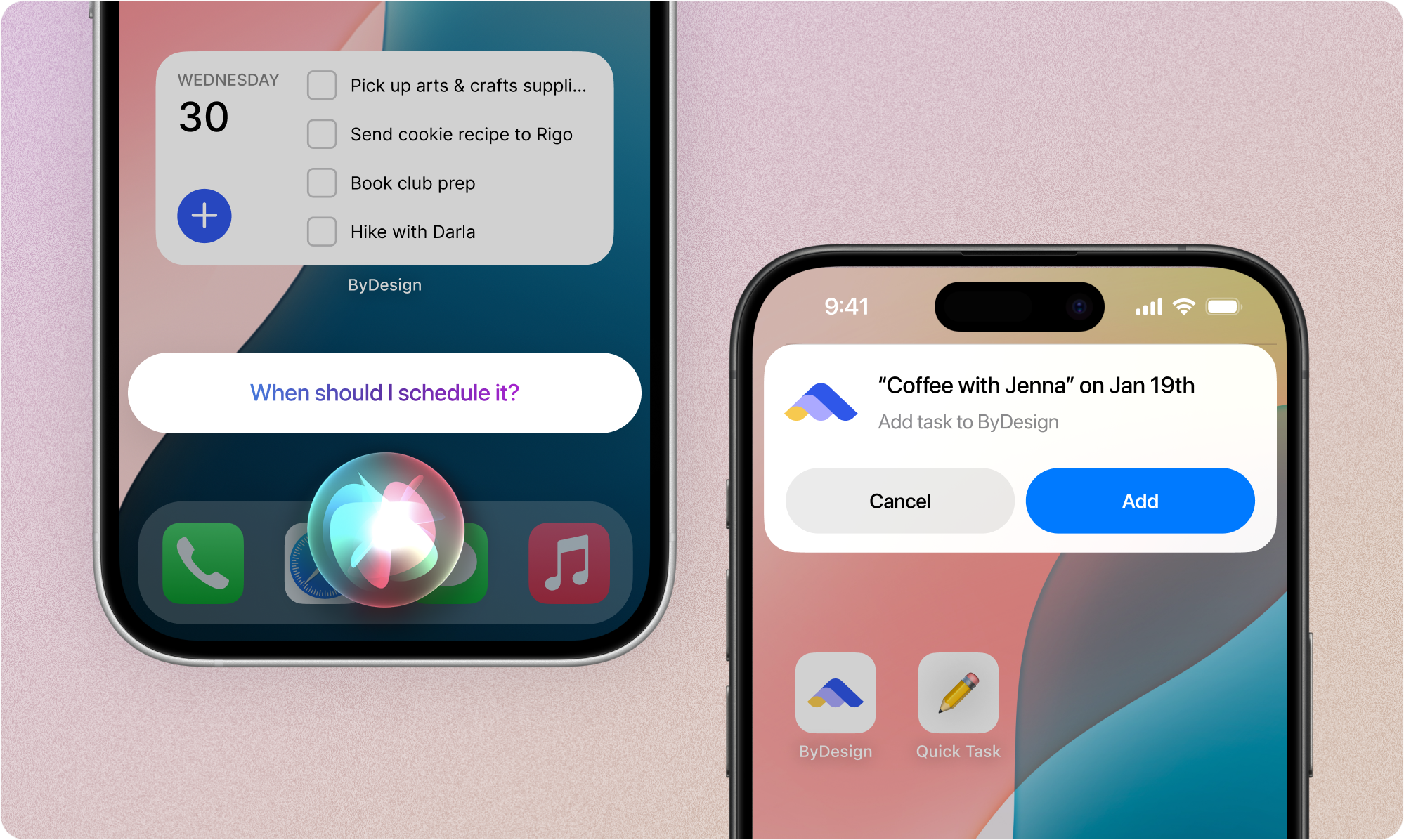
You can create two types of shortcuts:
Quick Task – lets you speak or type a task into ByDesign
Send to Inbox – adds the task directly to your Inbox in ByDesign
Here’s how to set them up 👇
🔧 1. Set Up the Quick Task Shortcut
This shortcut opens the ByDesign task capture input and lets you quickly type or speak a task on the go.
Open the Shortcuts app on your iPhone
Tap the "+" in the top right to create a new shortcut
Tap “Add Action”
Search for ByDesign in the list of apps
Select “Quick Task” as the action
The shortcut will default to the name “Quick Task” — you can rename it if you prefer (e.g., “New Task” or “Add Reminder”)
Tap Done
You’ve now created a Siri-enabled shortcut!
🎙️ How to Use It with Siri
Just say:
“Hey Siri, Quick Task”
…and Siri will launch the ByDesign capture window so you can speak or type your task.
📲 2. Add Quick Task to Your Home Screen
Want to add tasks without even talking? Add your shortcut to the home screen for instant access.
In the Shortcuts app, tap the three dots (•••) on your Quick Task shortcut
Tap the arrow icon next to the shortcut name (top of the screen)
Choose “Add to Home Screen”
You can:
Rename the shortcut if needed
Customize the icon (choose a color or image)
Tap Add
You’ll now see a custom Quick Task icon on your home screen—tap it anytime to capture a task in seconds.
📥 3. Set Up the Send to Inbox Shortcut
This shortcut skips the calendar and dashboard—it sends the task straight to your Inbox in ByDesign.
✅ Setup Instructions
Open the Shortcuts app
Tap "+" → Add Action
Search for ByDesign
Select “Send to Inbox”
Name the shortcut (e.g., “Inbox Task” or “Task Drop”)
Tap Done
You can now run this from:
The Shortcuts app
“Hey Siri, Inbox Task”
Or from your home screen if you follow the steps below ⬇
🏠 4. Add Inbox Shortcut to Home Screen
Tap the three dots on the Send to Inbox shortcut
Tap the arrow icon next to the shortcut name
Select “Add to Home Screen”
Customize the icon and name if desired
Tap Add
Now you’ve got one-tap access to drop tasks directly into your Inbox from your home screen.
🧠 Pro Tip
Set up both shortcuts—one for Quick Task when you want to add and sort tasks immediately, and one for Send to Inbox when you’re just capturing on the go.