Organize Your Work and Life
Pages in ByDesign are built to be flexible. You can use them for projects, journaling, planning, documentation—or anything else you’d usually do with a mix of notes and tasks. But unlike other tools, every page in ByDesign comes task-ready. You don’t need to decide whether this is a “note” or a “task”—you can just start typing and figure it out as you go.
Written By Chirali Jain
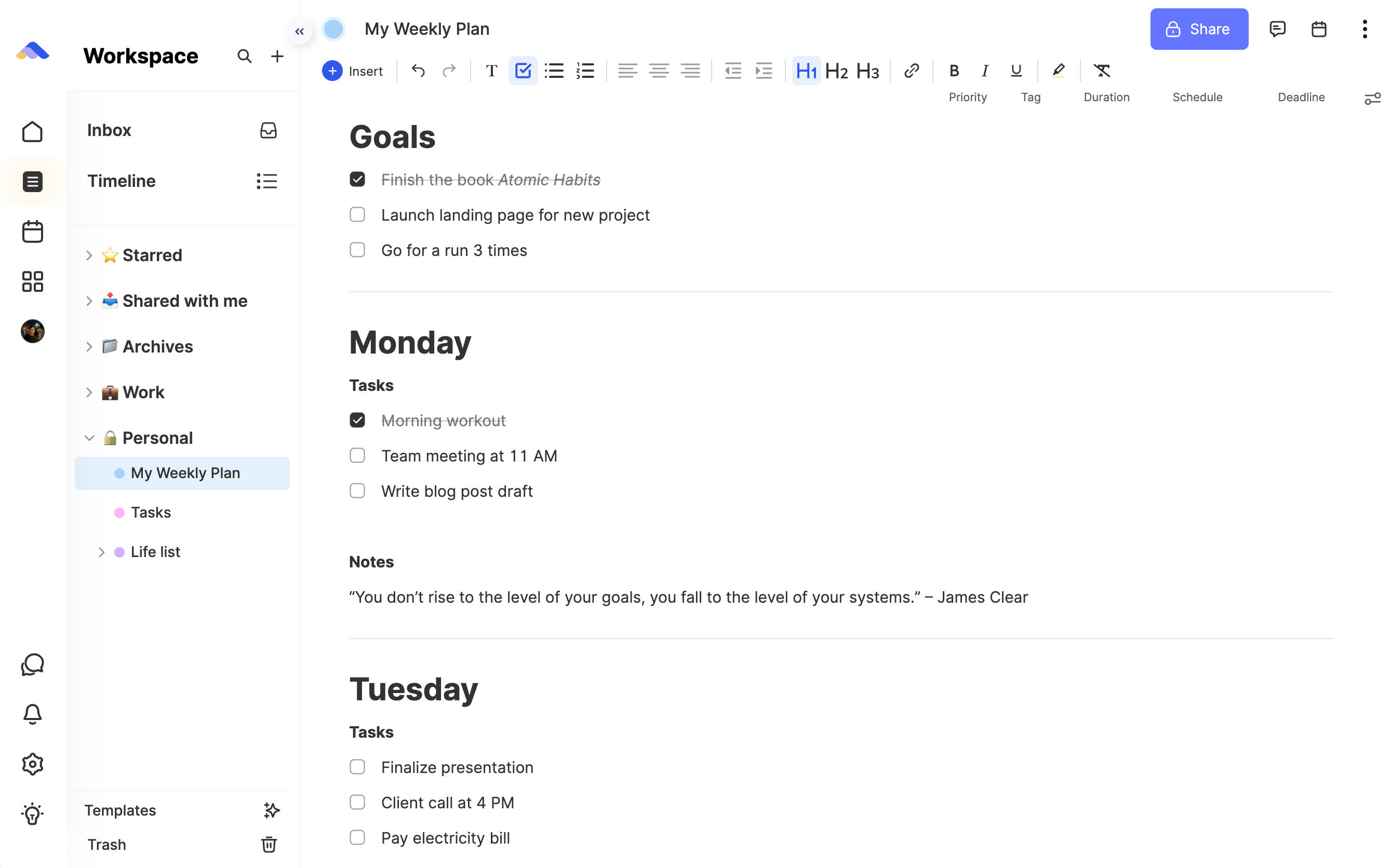
✳️ Getting Started
To create a new page:
Go to your Workspace tab
Click the + New Page button at the top-left
You can also click on the + New Page button in the sidebar
You can organize pages inside folders (like “Work” or “Personal”), and within those, you can nest pages as deeply as you like.
Some users also like to create “Home” pages for each area and link to all their subpages from there—almost like a mini dashboard.
🗂 Organizing Ideas & Projects
You might create:
A Work folder → with pages for each active project (like "Website Revamp", "Q3 Goals")
A Personal folder → with pages like "Life List", "Books to Read", or "Daily Journal"
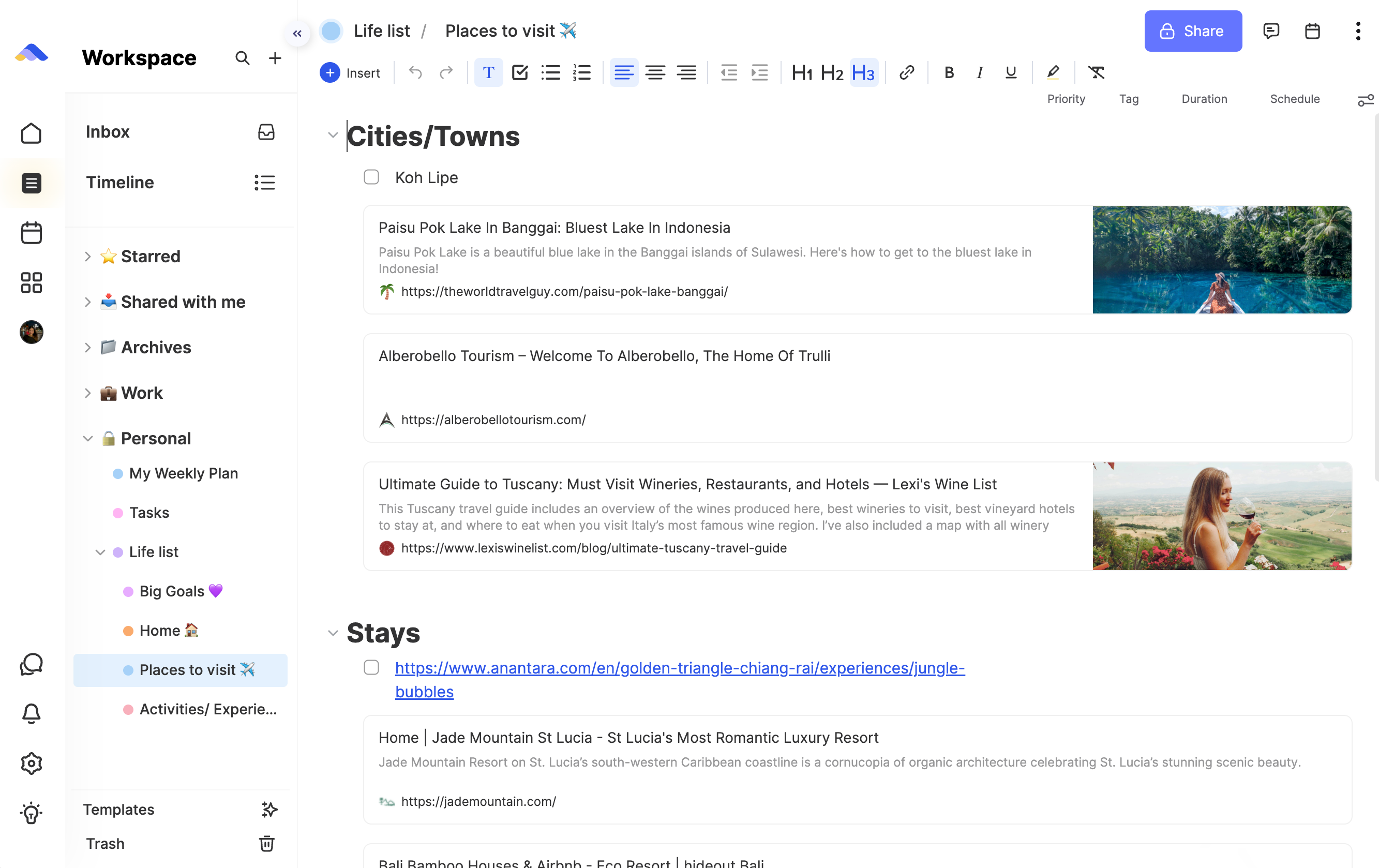
Inside a page, you can:
Add text, links, images, tables, embeds, and more using the
/commandUse headings to create sections and structure
Link to other pages to keep your system interconnected
Use toggles to hide sub-sections or group ideas
📌 Using Tasks Inside Pages
Because ByDesign is built around tasks, you’ll notice every line on a page has built-in task functionality.
Just type a line, and you can hover over it to:
Add tags, due dates, duration, priority, assignees, and notes
Or hit
Tabto indent it into a subtaskOr
Ctrl + Shift + Eto open the full task editor
Every page shows these columns (due date, tags, duration, etc.) by default—you don’t have to set anything up to start tracking things.
🔄 Moving Things Around
Pages are designed to be fluid:
Drag tasks between pages
Move pages into subpages or folders
Drop tasks from the Inbox straight into any page
Drag a task from a page directly to your calendar
You can also open a side calendar view on any page—just click the calendar icon in the top-right corner of a workspace page. That lets you drag tasks from the page and schedule them right away.
🧮 Taking Bulk Actions on Tasks
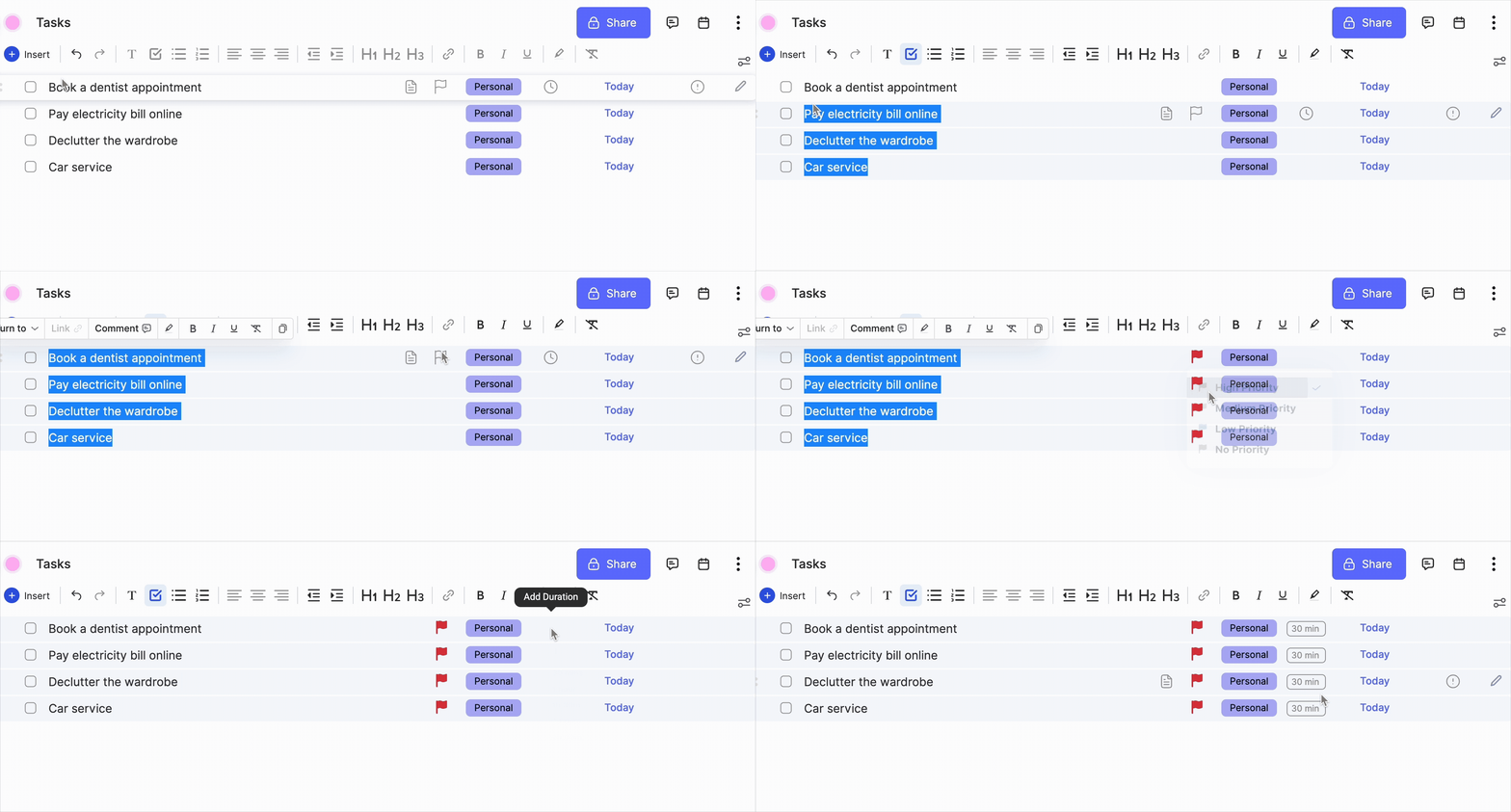
ByDesign makes it easy to manage tasks at scale—especially when working inside a page with lots of to-dos.
If you want to edit multiple tasks at once, just:
Select multiple blocks by:
Clicking and dragging across the left-side dots
Or holding
Shiftand clicking on blocks to multi-select
Once selected, you can:
Apply tags, schedules, deadlines, durations, assignees—all in one go
Just hover over the right-side for any property (e.g. tags), and you’ll see the option to bulk add/edit
And if your tasks have durations added, the total duration will automatically appear at the top of the column—helpful for estimating workload or time planning across a page.
💬 Notes & Comments
Select any block of text → add a comment
Add a note to a task directly (visible on the right-hand side column)
Highlight, link, or format blocks with the toolbar that appears when you select text
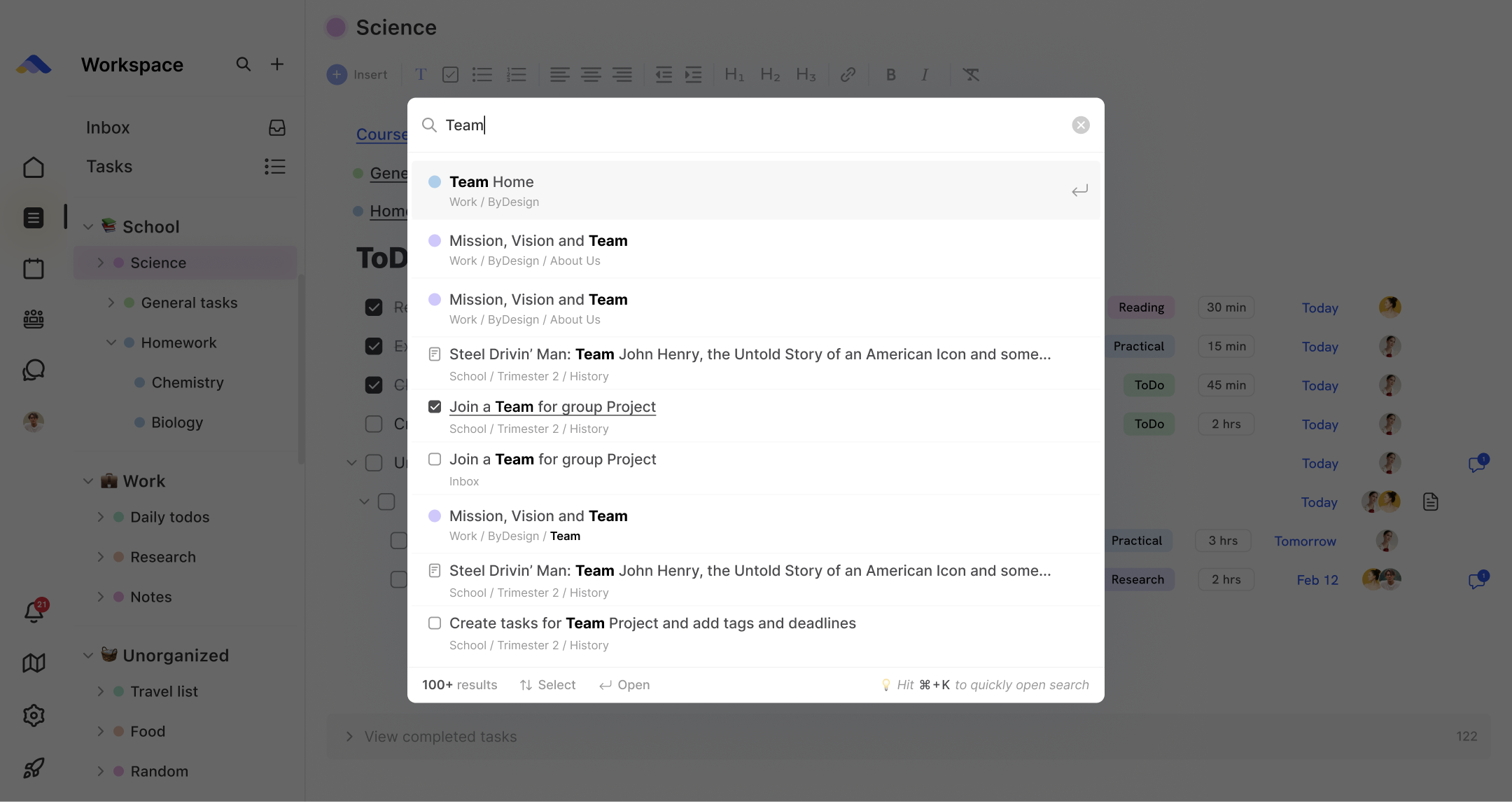
🔎 Finding Pages
You can quickly access any page by:
Navigating through folders
Using the Search Console (
Ctrl + D) and typing the page namePinned pages will also show up on your dashboard if you’ve marked them for quick access