Using the Calendar in ByDesign
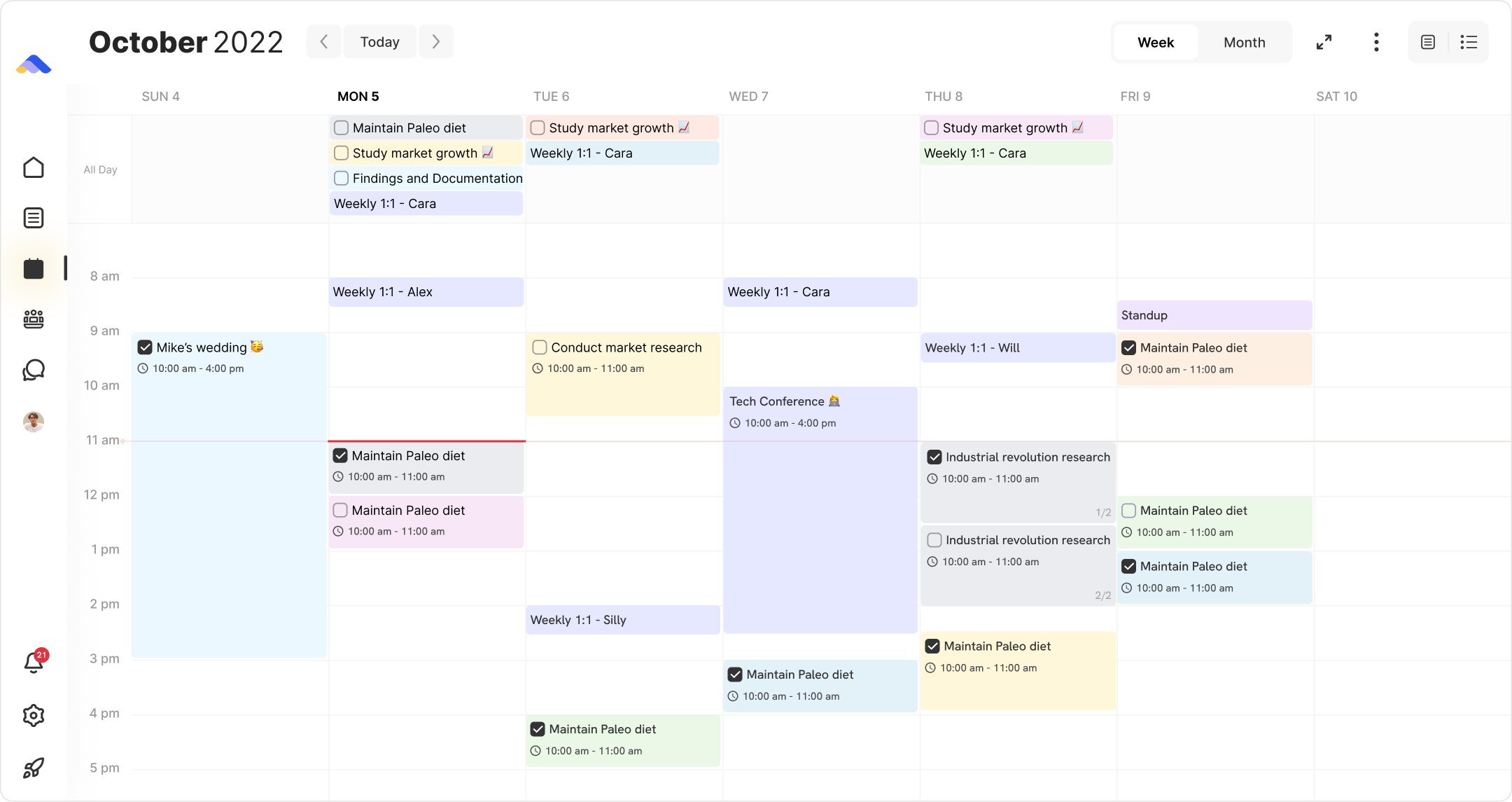
ByDesign’s calendar gives you a clean, visual way to plan your day, week, or month—with both internal tasks and external calendar events showing up together.
Written By Chirali Jain
🧭 Views & Layout
On desktop, the calendar appears in your left-hand pane of the Dashboard - which can be expanded to full calendar screen or you can just navigate directly via the navbar on left side.
Shortcut to jump to calendar view:
CTRL+KYou can switch between:
Weekly view (W)
Monthly view (M)
Jump to Today (T)
🧩 What You’ll See
Your ByDesign tasks, events, and habits
Events from any external calendars you've connected
Color-coded entries for quick scanning
Drag-and-drop functionality to reschedule or timebox any task
You can even drag tasks from the Dashboard or Inbox directly into the calendar to block time for them.