Connecting Your Calendars to ByDesign
ByDesign supports smooth integration with your existing calendars—so your schedule lives in one place and you never miss a beat.
Written By Chirali Jain
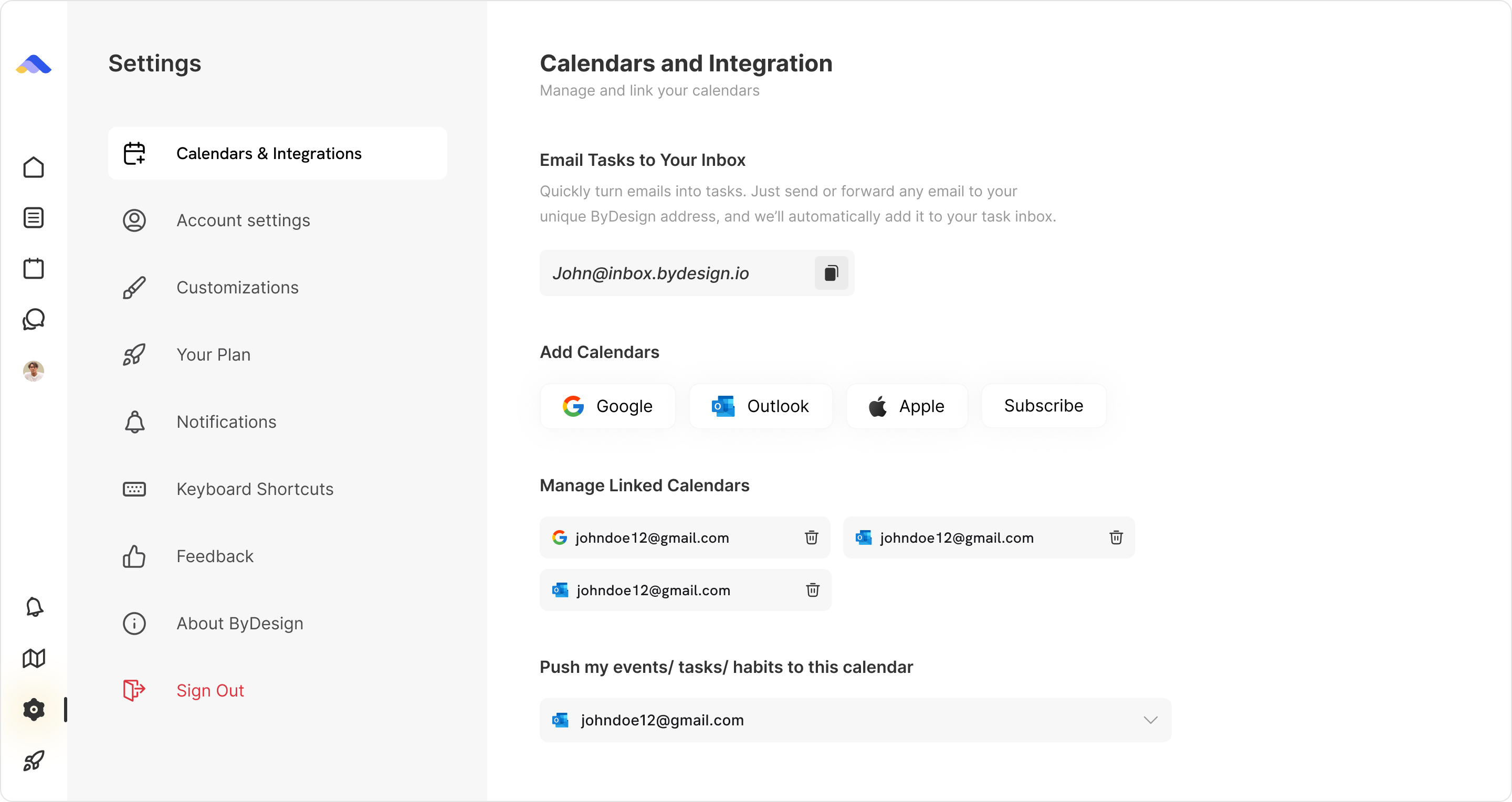
When & How to Integrate
You can connect your calendars at two points:
During onboarding: Right after signing up, you’ll see a screen prompting you to connect your Google or Outlook calendar.
After onboarding: If you skipped the step, you can connect calendars anytime from your Settings → Calendar & Integrations.
📤 What’s Supported Right Now
ByDesign currently supports:
One-way sync (view external calendars inside ByDesign)
Two-way push (push events created in ByDesign to your external calendar)
Supported services:
Google Calendar
Apple Calendar
Outlook Calendar
Note:
Full two-way sync (changes made in Google/Outlook reflecting back into ByDesign) is coming soon.
🔁 How Calendar Sync Works
Events created in ByDesign can be pushed to the external calendar of your choice
You can set a default calendar for pushing events (in Settings → Calendar & Integrations)
When creating/editing an event or habit in ByDesign, you can also choose to override the default calendar and pick a different one
This setup helps keep your professional and personal life in sync—without duplicating anything manually.
🛠 Set Your Default External Calendar
When you push tasks or events to a calendar, ByDesign uses your default calendar.
You can set or change this from:
Settings → Calendar & Integrations → Default Calendar
You can also manually override it anytime while creating/editing an event, task, or habit.