Customizing and Managing a Page
Pages in ByDesign are flexible by design—but they also come with a set of powerful options tucked away in the three-dot menu at the top right. Whether you’re trying to change the way your tasks appear on your calendar, clean up clutter, or export your work, this guide walks you through everything you can do.
Written By Chirali Jain
🎨 Changing the Page Color
Every page in ByDesign can be assigned a color—and it’s more than just aesthetic.
To change a page’s "color"
Click the colored circle at the top-left of the page
Choose the color you want
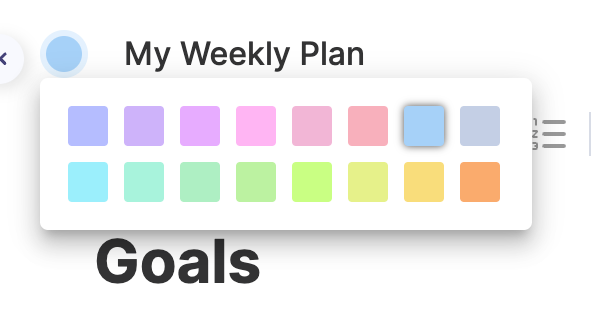
Once you do:
That color becomes the visual label of the page in your sidebar
Most importantly, tasks scheduled from this page will appear in that color on your calendar
This is incredibly useful if you want to visually separate different projects or life areas (e.g. pink for personal, blue for work, green for health).
Your calendar becomes an instant visual snapshot of where your time is going.
Page Options Menu (⋮)
Click the three-dot menu in the top right of any page to access its controls.
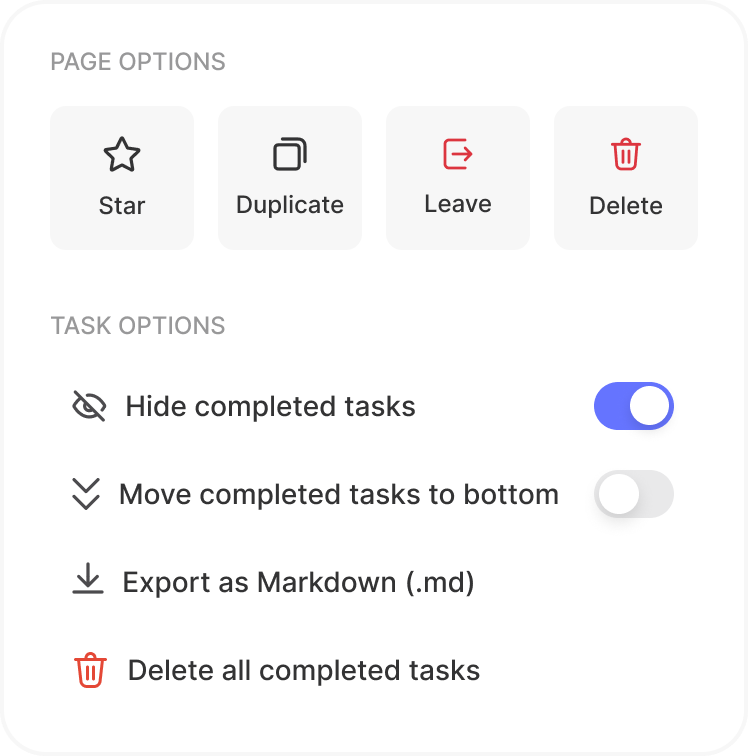
Page Management
Star / Unstar Page
Pin important pages to the top of your sidebar and dashboardDuplicate Page
Create a copy of the current page—perfect for recurring templates or reportsLeave Page (for shared pages)
Remove yourself from a shared page you no longer need access toDelete Page
Move the page to Trash (you can restore it within 30 days)
Task Management (within a Page)
Hide Completed Tasks
Keep your page focused by hiding tasks you’ve already checked offDelete All Completed Tasks
Clean up with a single click—no need to remove each one manuallyComplete All Tasks
Useful for wrap-up moments (e.g. marking everything done at the end of a sprint)Move All Tasks to Bottom
Instantly push all scheduled or pending tasks below your notes or content
Exporting
Export Page as Markdown (
.md)
Great for backups, sharing outside ByDesign, or saving long-form notes
🗑 What Happens When You Delete a Page?
When you delete a page, it’s not gone forever.
Deleted pages are moved to your Trash, where they remain for 30 days.
You can restore or permanently delete pages from Trash at any time.
✨ Why Use These Settings?
These options exist to help you:
Keep your pages clean and distraction-free
Visualize your calendar with more clarity
Stay organized as projects evolve
Quickly reuse or archive content without starting over
Whether you're planning your week, managing a team project, or tracking your goals, these controls give you flexibility without complexity.